Arduino Nano 33 IoT: Your Connected Microcontroller Companion
A compact and capable Arduino board featuring Wi-Fi and Bluetooth connectivity, powered by a robust ARM Cortex-M4 microcontroller.
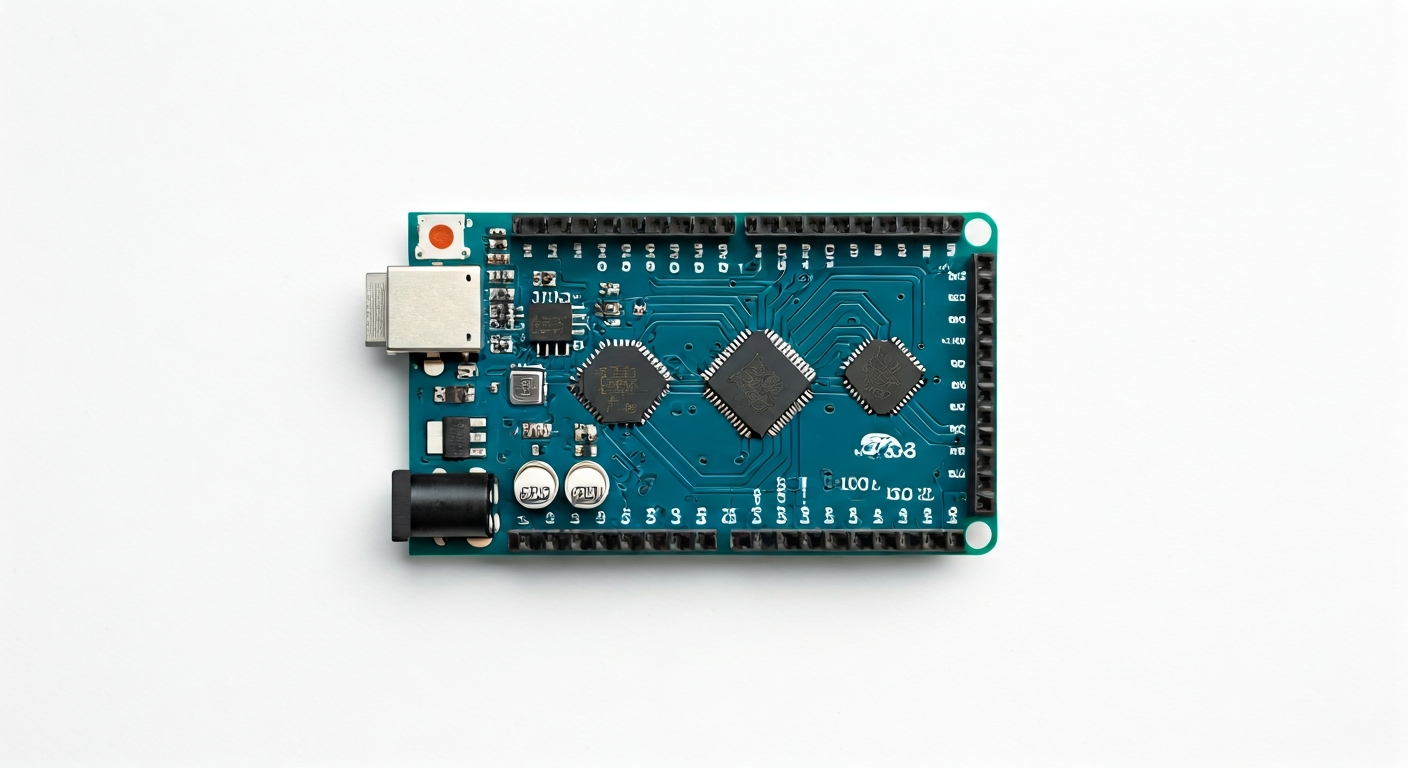
The Arduino Nano 33 IoT is a small but powerful microcontroller board designed for IoT projects. It bridges the gap between simple microcontrollers and more complex single-board computers by integrating wireless communication capabilities directly onto a familiar Arduino form factor. This makes it an excellent choice for makers, students, and engineers looking to build connected devices without the need for external shields or modules for basic wireless functionality.
At its heart, the Nano 33 IoT is powered by the u-blox NINA-W102 module, which incorporates an ESP32 chip. This dual-core processor architecture provides ample processing power for a wide range of applications, from simple sensor data logging to more complex control tasks. The ESP32's integrated Wi-Fi and Bluetooth capabilities are a key feature, enabling easy connection to networks and other devices for remote monitoring, control, and data exchange.
Positioned within the Arduino family, the Nano 33 IoT offers a significant upgrade in processing power and connectivity compared to its predecessors like the original Arduino Nano. It retains the compact Nano footprint, making it suitable for projects where space is limited, such as wearable devices, small robots, or smart home sensors. Its 3.3V operating voltage and robust feature set make it a versatile platform for both beginners exploring IoT and experienced engineers prototyping connected solutions.
Released around 2019, the Arduino Nano 33 IoT was one of the first Arduino boards to prominently feature integrated wireless connectivity and a more powerful ARM-based microcontroller. It caters to a growing demand for internet-connected devices, enabling projects that can be monitored and controlled from anywhere via a smartphone or web interface. Its ease of use, combined with its advanced features, makes it ideal for learning about IoT, embedded systems, and wireless communication.
Watch
Related video, embedded from YouTube.
Specifications
| Microcontroller / SoC | u-blox NINA-W102 (based on ESP32) |
| Architecture | 32-bit ARM Cortex-M4 |
| Clock speed | 130 MHz |
| Flash / Storage | 4 MB (on ESP32) |
| RAM / SRAM | 520 KB SRAM (on ESP32) |
| Operating voltage | 3.3V |
| Digital I/O pins | 14 |
| Analog / ADC | 8 (12-bit resolution) |
| PWM | 11 (on most digital pins) |
| Connectivity | Wi-Fi 802.11 b/g/n, Bluetooth v4.2 BR/EDR and BLE |
| USB | Micro-USB connector (for power and programming) |
| Power input | 5V via Micro-USB or VIN pin (regulated onboard to 3.3V) |
| Dimensions | 48mm x 18mm |
Pinout & pin functions
| Pin | Function |
|---|---|
| 3.3V | Power output (3.3V) |
| GND | Ground |
| VIN | Power input (7-12V recommended, regulated onboard) |
| RESET | System reset pin |
| D0 (RX) | Digital I/O, UART RX |
| D1 (TX) | Digital I/O, UART TX |
| D2 | Digital I/O |
| D3 | Digital I/O, PWM |
| D4 | Digital I/O |
| D5 | Digital I/O, PWM |
| D6 | Digital I/O, PWM |
| D7 | Digital I/O |
| D8 | Digital I/O |
| D9 | Digital I/O, PWM |
| D10 | Digital I/O, PWM, SPI SS |
| D11 | Digital I/O, PWM, SPI MOSI |
| D12 | Digital I/O, SPI MISO |
| D13 | Digital I/O, SPI SCK, LED_BUILTIN |
| A0 | Analog Input (ADC), Digital I/O |
| A1 | Analog Input (ADC), Digital I/O |
| A2 | Analog Input (ADC), Digital I/O |
| A3 | Analog Input (ADC), Digital I/O |
| A4 | Analog Input (ADC), Digital I/O, I2C SDA |
| A5 | Analog Input (ADC), Digital I/O, I2C SCL |
| A6 | Analog Input (ADC), Digital I/O |
| A7 | Analog Input (ADC), Digital I/O |
| SDA | I2C Data (same as A4) |
| SCL | I2C Clock (same as A5) |
| MOSI | SPI Master Out Slave In (same as D11) |
| MISO | SPI Master In Slave Out (same as D12) |
| SCK | SPI Clock (same as D13) |
| SS | SPI Slave Select (same as D10) |
Wiring & circuit basics
Powering the Arduino Nano 33 IoT is straightforward. The most common method is via the Micro-USB port, which supplies 5V and is also used for programming. Alternatively, you can use the VIN pin, which accepts a voltage range typically between 7V and 12V; an onboard voltage regulator will step this down to the 3.3V required by the microcontroller and most peripherals. Always ensure your power source can provide sufficient current, generally at least 500mA, to handle the board and any connected components, especially when using Wi-Fi.
It is crucial to remember that the Arduino Nano 33 IoT operates at a logic level of 3.3V. Connecting 5V devices directly to its GPIO pins can cause permanent damage. If you need to interface with 5V components, use a logic level shifter. For example, to safely blink an LED, connect the anode of the LED to a 3.3V pin on the board, the cathode to one end of a current-limiting resistor (e.g., 220-330 ohms), and the other end of the resistor to a digital pin (e.g., D13, which also has an onboard LED).
For connecting sensors or other modules, pay attention to their operating voltage and logic levels. Many I2C sensors, like the popular MPU6050 accelerometer or BME280 environmental sensor, operate at 3.3V and can be connected directly. For an I2C sensor, connect its VCC to the 3.3V pin, GND to a GND pin, SDA to the A4 (or SDA) pin, and SCL to the A5 (or SCL) pin on the Nano 33 IoT. Ensure the sensor's datasheet confirms 3.3V compatibility or if a level shifter is needed.
Programming & getting started
The primary toolchain for the Arduino Nano 33 IoT is the Arduino IDE. After installing the IDE, you'll need to add the board support package for the 'Arduino SAMD Boards (32-bit ARM Cortex-M0+)' and then select 'Arduino Nano 33 IoT' from the board manager. Connect the board via USB, select the correct COM port, and you can upload sketches written in the Arduino language (based on C/C++). The ESP32's Wi-Fi and Bluetooth libraries are readily available within the Arduino IDE environment.
For a first program, the classic 'Blink' sketch is ideal. Uploading it involves opening the sketch (File > Examples > 01.Basics > Blink), selecting the correct board and port in the IDE, and clicking the Upload button. The onboard LED, connected to D13, will start blinking. To explore its connectivity, you can then try examples for Wi-Fi scanning or connecting to an access point, which are often included in the board's library examples.