Arduino Uno R4 WiFi: The Classic Reimagined with Wireless Power
The iconic Arduino Uno gets a significant upgrade with a powerful 32-bit microcontroller and built-in Wi-Fi and Bluetooth, bridging the gap between traditional prototyping and IoT applications.
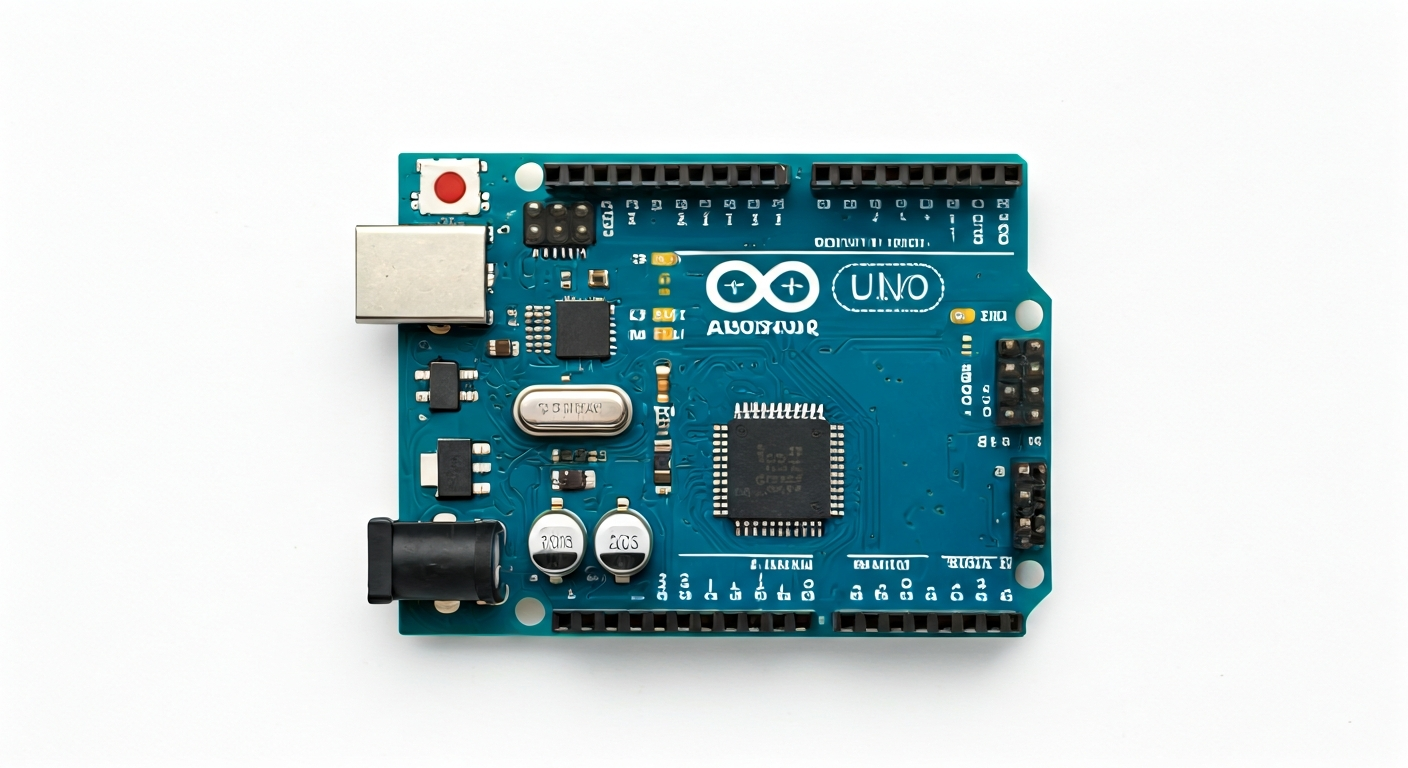
The Arduino Uno R4 WiFi is a significant evolution of the world's most popular microcontroller board, designed to offer more power and modern connectivity while maintaining the familiar Uno form factor and ease of use. It replaces the venerable 8-bit ATmega328P with a much more capable 32-bit Renesas RA4M1 microcontroller, bringing substantial improvements in processing power, memory, and peripherals. This makes it an excellent choice for users who have outgrown the limitations of the original Uno but still want a straightforward development experience.
At the heart of the Uno R4 WiFi is the Renesas RA4M1, a 32-bit Arm Cortex-M4 processor running at 48 MHz. This chip provides a significant leap in performance compared to the 16 MHz 8-bit AVR of previous Unos. It boasts 256 KB of Flash memory for code storage and 32 KB of SRAM for variables, vastly more than its predecessors. The RA4M1 also includes a rich set of peripherals, including a true analog-to-digital converter (ADC), digital-to-analog converter (DAC), and importantly for this board, integrated Wi-Fi and Bluetooth Low Energy (BLE) capabilities.
The Uno R4 WiFi is positioned as a bridge between the classic Arduino ecosystem and the burgeoning world of IoT. It retains the standard Arduino Uno shield compatibility, ensuring that existing shields will largely work without modification. However, the addition of wireless connectivity opens up a vast array of new project possibilities, from remote sensor monitoring and smart home devices to web-connected art installations and data logging. It's ideal for students learning about microcontrollers and networking, hobbyists looking to add smart features to their projects, and even professional engineers prototyping IoT solutions.
This board represents a thoughtful upgrade, aiming to democratize access to more advanced features like wireless communication and higher processing power. By keeping the Uno footprint and pinout largely the same, Arduino ensures a smooth transition for existing users. The inclusion of both Wi-Fi and Bluetooth on a single board, coupled with the robust Renesas microcontroller, makes the Uno R4 WiFi a versatile platform for a wide range of applications, from simple blinking LEDs to complex, cloud-connected projects.
Watch
Related video, embedded from YouTube.
Specifications
| Microcontroller / SoC | Renesas RA4M1 (32-bit Arm Cortex-M4) |
| Architecture | Arm Cortex-M4 |
| Clock speed | 48 MHz |
| Flash / Storage | 256 KB |
| RAM / SRAM | 32 KB |
| Operating voltage | 5V |
| Digital I/O pins | 14 (of which 6 can provide PWM output) |
| Analog / ADC | 6 Analog Inputs (12-bit resolution) |
| PWM | 6 pins (Pins 3, 5, 6, 9, 10, 11) |
| Connectivity | Wi-Fi (802.11 b/g/n), Bluetooth 5.0 Low Energy (BLE) |
| USB | USB-C (for programming and power) |
| Power input | 7-12V DC via barrel jack, or 5V via USB-C |
| Dimensions | 68.6mm x 53.3mm (2.7in x 2.1in) |
Pinout & pin functions
| Pin | Function |
|---|---|
| GND | Ground |
| 3V3 | 3.3V Power Output |
| 5V | 5V Power Output (from USB or Vin) |
| A0 | Analog Input / Digital I/O |
| A1 | Analog Input / Digital I/O |
| A2 | Analog Input / Digital I/O |
| A3 | Analog Input / Digital I/O |
| A4 | Analog Input / Digital I/O (I2C SDA) |
| A5 | Analog Input / Digital I/O (I2C SCL) |
| A6 | Analog Input / Digital I/O |
| A7 | Analog Input / Digital I/O |
| D0 (RX) | Digital I/O (Serial RX) |
| D1 (TX) | Digital I/O (Serial TX) |
| D2 | Digital I/O |
| D3 | Digital I/O (PWM) |
| D4 | Digital I/O |
| D5 | Digital I/O (PWM) |
| D6 | Digital I/O (PWM) |
| D7 | Digital I/O |
| D8 | Digital I/O |
| D9 | Digital I/O (PWM) |
| D10 | Digital I/O (PWM, SPI MOSI) |
| D11 | Digital I/O (PWM, SPI MOSI) |
| D12 | Digital I/O (SPI MISO) |
| D13 | Digital I/O (SPI SCK, built-in LED) |
| AREF | Analog Reference Voltage |
| RESET | Reset Button / Pin |
| VIN | Voltage Input (7-12V recommended) |
Wiring & circuit basics
Powering the Arduino Uno R4 WiFi can be done via the USB-C port or the DC barrel jack. When using the barrel jack, a voltage between 7V and 12V is recommended. The board has an onboard voltage regulator that steps this down to 5V for the microcontroller and the 5V pins. Avoid applying more than 12V, as this can overheat the regulator. If powering from USB-C, ensure your power source can supply sufficient current, especially when using Wi-Fi, which can draw significant power. The 3.3V pin provides a regulated output for low-voltage components; do not connect external power to this pin.
The Arduino Uno R4 WiFi operates at a 5V logic level. This means that digital HIGH signals are typically 5V, and LOW signals are 0V. When interfacing with components that use 3.3V logic, such as many modern sensors and modules, it is crucial to use a logic level shifter. Connecting a 3.3V device directly to a 5V output pin can damage the device, and conversely, connecting a 5V device to a 3.3V input pin might result in the input not being recognized as HIGH. Always check the voltage requirements of your external components.
For a simple LED circuit, connect a current-limiting resistor (e.g., 220-330 ohms) between a digital I/O pin (like D13, which also controls the onboard LED) and the anode (longer leg) of an LED. Connect the cathode (shorter leg) of the LED to a GND pin. When the digital pin is set HIGH (5V), current flows through the resistor and LED, illuminating it. When set LOW (0V), the LED turns off. For I2C communication with a sensor like the BME280, connect the sensor's VCC to the Uno's 5V pin, GND to GND, SDA to A4 (or D14), and SCL to A5 (or D15).
Programming & getting started
The primary toolchain for the Arduino Uno R4 WiFi is the Arduino IDE, which supports the Renesas RA4M1 microcontroller via board manager packages. You'll need to install the 'Arduino UNO R4 WiFi' board support package through the IDE's Board Manager. Uploading code is done via the USB-C connection. Simply write your sketch, select 'Arduino Uno R4 WiFi' from the Tools > Board menu, choose the correct COM port, and click the Upload button. For more advanced users, PlatformIO with VS Code offers a robust development environment, and MicroPython/CircuitPython support is also becoming available, offering a Python-based programming experience.
To get started, download and install the latest Arduino IDE. After installation, go to Tools > Board > Boards Manager, search for 'UNO R4 WiFi', and install the package provided by Arduino. Connect the Uno R4 WiFi to your computer using a USB-C cable. In the Arduino IDE, select 'Arduino Uno R4 WiFi' from the Tools > Board menu. Then, go to Tools > Port and select the COM port associated with your board. Open the 'Blink' example sketch (File > Examples > 01.Basics > Blink), modify the pin number if necessary (though the onboard LED is usually on pin 13), and click the Upload button. The IDE will compile the sketch and upload it to the board.