ESP32-CAM: Your Gateway to Vision Projects on a Budget
This compact, low-cost module combines an ESP32 microcontroller with a camera, enabling Wi-Fi and Bluetooth enabled image capture and processing for embedded vision applications.
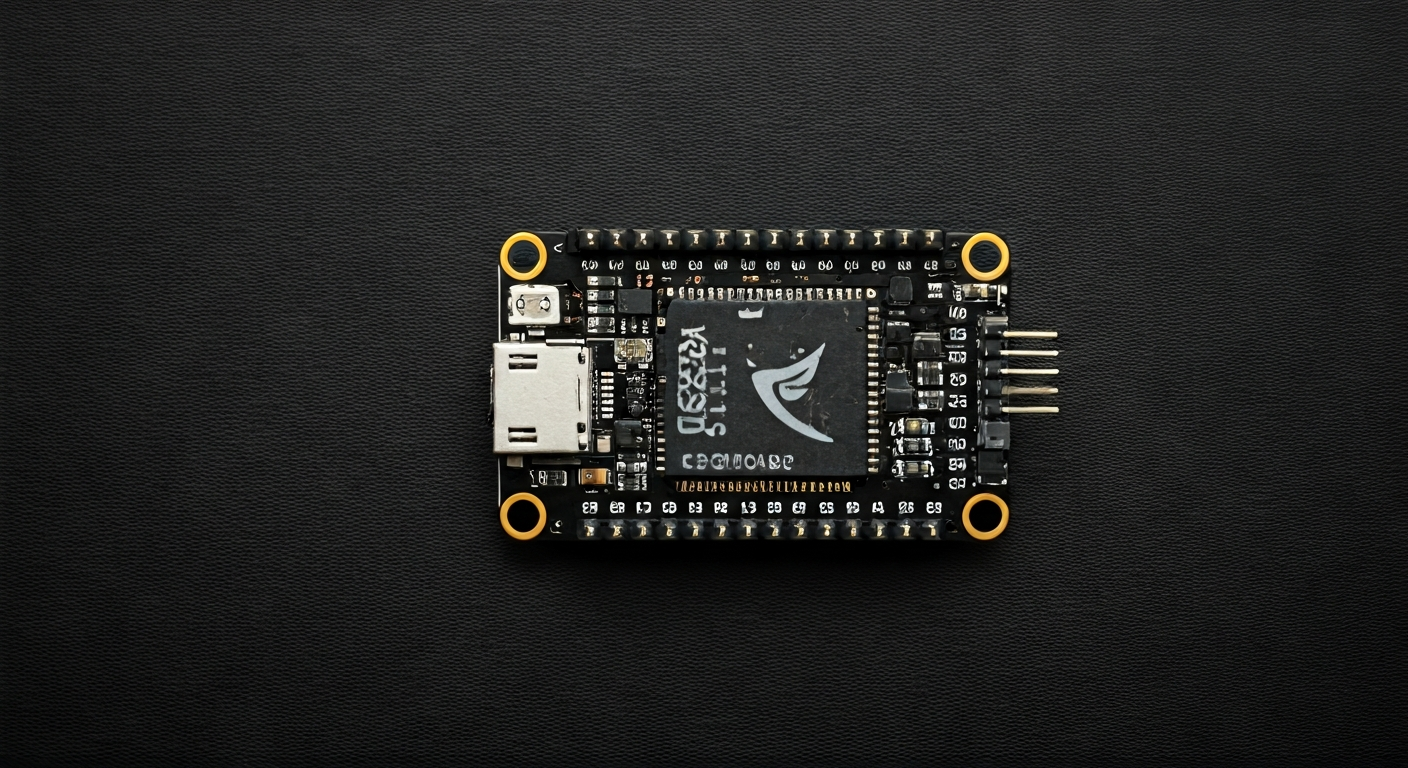
The ESP32-CAM is a highly integrated development board designed for embedded vision applications. It features the popular ESP32-S chip, which is a dual-core Tensilica LX6 microprocessor with integrated Wi-Fi and Bluetooth connectivity. This makes it a powerful and versatile platform for projects that require both computation and wireless communication, especially those involving image capture and processing.
At its heart is the ESP32-S SoC, a System-on-Chip that packs significant processing power into a small footprint. It boasts two Xtensa LX6 cores running at up to 240 MHz, ample SRAM, and a host of peripherals including I2S, SPI, I2C, UART, and ADC. The ESP32-CAM specifically adds an interface for an OV2640 camera module, making it ideal for projects like remote surveillance, time-lapse photography, or even basic object recognition.
Released around 2019 by AI-Thinker, the ESP32-CAM quickly gained popularity among makers and hobbyists due to its incredibly low cost and the integration of camera functionality directly onto the development board. While other ESP32 boards offer more GPIO pins or specific features, the ESP32-CAM's primary focus is on camera-centric projects, making it a go-to choice for anyone looking to add visual capabilities to their IoT projects without breaking the bank.
This board is particularly well-suited for makers, students, and embedded engineers who are interested in exploring the world of computer vision and image processing on a microcontroller. Its ease of use with the Arduino IDE, combined with its powerful features, makes it accessible to beginners while still offering enough depth for more advanced projects. If you want to build a smart doorbell, a remote monitoring system, or experiment with AI on the edge, the ESP32-CAM is an excellent starting point.
Watch
Related video, embedded from YouTube.
Specifications
| Microcontroller / SoC | ESP32-S (ESP32-WROOM-32E module, often with integrated flash) |
| Architecture | Dual-core Tensilica Xtensa LX6 |
| Clock speed | Up to 240 MHz |
| Flash / Storage | 4MB (on-board module) |
| RAM / SRAM | 520 KB SRAM |
| Operating voltage | 3.3V |
| Digital I/O pins | 16 (exposed, but many used internally for camera/flash) |
| Analog / ADC | 2x 12-bit SAR ADCs (shared with other functions) |
| PWM | 8 channels (software configurable) |
| Connectivity | Wi-Fi 802.11 b/g/n, Bluetooth v4.2 BR/EDR and BLE |
| USB | None (requires external USB-to-Serial adapter for programming) |
| Power input | 5V via micro-USB or VIN pin |
| Dimensions | Approx. 27 x 40.5 x 4.5 mm (PCB only, excluding headers) |
Pinout & pin functions
| Pin | Function |
|---|---|
| 5V | Input voltage (typically from USB or VIN) |
| GND | Ground |
| 3V3 | 3.3V output (regulated) |
| VIN | Input voltage (typically 5V) |
| GPIO0 | Boot mode selection (low during boot for flashing) |
| GPIO2 | LED Flash (often connected to onboard LED), also used for camera |
| GPIO4 | Camera data line (D4) |
| GPIO5 | Camera clock line (XCLK) |
| GPIO12 | Camera data line (D12) |
| GPIO13 | Camera data line (D5) |
| GPIO14 | Camera data line (D6) |
| GPIO15 | Camera data line (D7) |
| GPIO16 (RX2) | UART2 RX (used for serial communication) |
| GPIO17 (TX2) | UART2 TX (used for serial communication) |
| GPIO18 | Camera data line (D0) |
| GPIO19 | Camera data line (D2) |
| GPIO21 | I2C SDA |
| GPIO22 | I2C SCL |
| GPIO23 | Camera data line (D3) |
| GPIO25 | Camera data line (D8) |
| GPIO26 | Camera data line (D9) |
| GPIO27 | Camera data line (D10) |
| GPIO32 | Camera data line (D11) |
| GPIO33 | Camera data line (D13) |
| VSYNC | Camera Vertical Sync |
| HREF | Camera Horizontal Reference |
| PCLK | Camera Pixel Clock |
| AI_0 | ADC1_CH0 (also GPIO36) |
| AI_2 | ADC1_CH3 (also GPIO39) |
| AI_3 | ADC1_CH6 (also GPIO34) |
| AI_6 | ADC1_CH4 (also GPIO33) |
| AI_9 | ADC2_CH3 (also GPIO4) |
Wiring & circuit basics
Powering the ESP32-CAM requires careful attention to voltage levels. The board operates at 3.3V, but it can be powered via a micro-USB port or the VIN pin, which typically accepts 5V. An onboard voltage regulator steps this down to 3.3V for the ESP32-S chip and other components. It's crucial to avoid applying more than 5V to the VIN pin or the micro-USB port, as this could damage the board. Ensure a stable power supply, especially when the camera is active, as it can draw significant current spikes. A current of at least 500mA is recommended for reliable operation.
All GPIO pins on the ESP32-CAM operate at 3.3V logic levels. Connecting 5V devices directly to these pins can cause permanent damage. If you need to interface with 5V components, such as many common LEDs or sensors, you must use a level shifter. For example, to connect a 5V LED, you would connect the ESP32-CAM's 3.3V output to the LED's anode, the LED's cathode to a current-limiting resistor (e.g., 220-330 ohms), and the other end of the resistor to a GND pin on the ESP32-CAM.
For connecting sensors, such as an I2C-based sensor like the BME280, you would use the dedicated I2C pins. Connect the sensor's VCC to the ESP32-CAM's 3.3V pin, the sensor's GND to a GND pin, the sensor's SDA to GPIO21 (SDA), and the sensor's SCL to GPIO22 (SCL). Remember that if the sensor operates at 5V, you will need a level shifter between the ESP32-CAM's I2C pins and the sensor's I2C pins.
Programming & getting started
The ESP32-CAM is most commonly programmed using the Arduino IDE, thanks to excellent community support and readily available libraries. To get started, you'll need to add the ESP32 board support to your Arduino IDE via the Board Manager. Once installed, select the 'AI Thinker ESP32-CAM' board from the Tools > Board menu. You will also need an external USB-to-Serial adapter (like an FTDI or CP2102 based module) connected to the UART pins (GPIO16 for RX, GPIO17 for TX) and GPIO0 to GND during boot for flashing.
To upload your first sketch, connect the USB-to-Serial adapter to your computer and the ESP32-CAM. Ensure GPIO0 is pulled low (connected to GND) before powering the board or resetting it. Open a simple sketch, like the 'Blink' example, modified to toggle an onboard LED (often connected to GPIO2). Select the correct COM port for your USB-to-Serial adapter and click the Upload button. Once uploaded, disconnect the USB-to-Serial adapter, remove the jumper from GPIO0 to GND, and reset the board to run your program. For more advanced development, you can also use ESP-IDF or PlatformIO.