Raspberry Pi 500: The All-in-One Desktop Powerhouse for Makers
Combining the power of a Raspberry Pi 5 with a full-sized keyboard and a compact desktop enclosure, the Raspberry Pi 500 is a complete, ready-to-go computing solution for education and hobbyist projects.
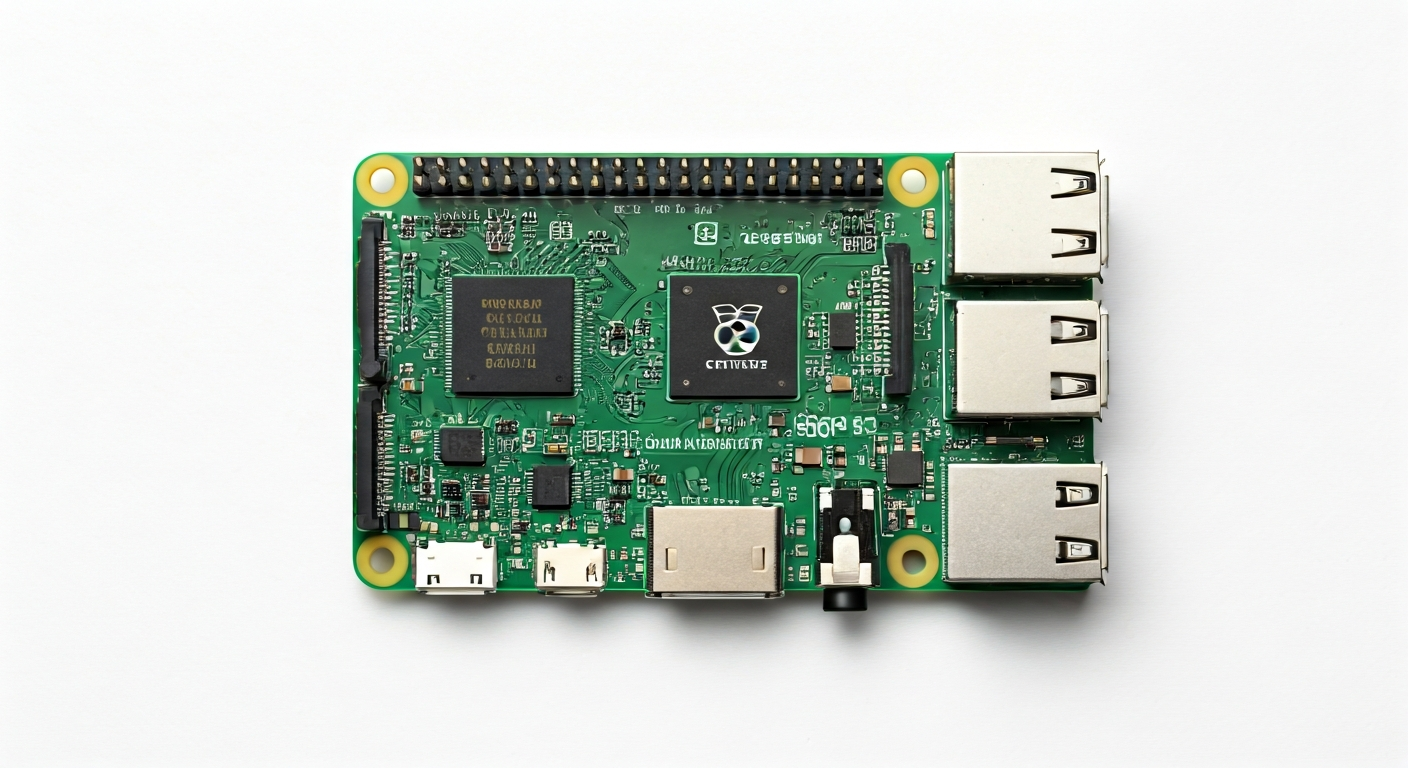
The Raspberry Pi 500 represents a significant evolution in the Raspberry Pi family, integrating the powerful Raspberry Pi 5 compute module into a sleek, functional keyboard housing. This innovative design transforms the popular single-board computer into a complete desktop experience, requiring only a display and a mouse to become fully operational. It's built around the latest Broadcom BCM2712 SoC, offering substantial performance gains over previous generations, making it suitable for more demanding applications and smoother multitasking.
At its heart, the Raspberry Pi 500 features the Broadcom BCM2712, a quad-core 64-bit Arm Cortex-A76 processor clocked at 2.4GHz. This SoC is a considerable upgrade, providing a significant boost in CPU and graphics performance. Paired with 4GB of LPDDR4X SDRAM, it handles everything from web browsing and document editing to more complex programming tasks and light gaming with ease. The inclusion of a dedicated Raspberry Pi 5 silicon die ensures robust thermal management and high-speed I/O capabilities.
Positioned as a premium, integrated solution, the Raspberry Pi 500 is ideal for students learning to code, educators in classroom settings, and makers who want a powerful yet accessible computing platform that doubles as a development environment. Its all-in-one nature simplifies setup and reduces clutter, making it a perfect fit for desks where space is at a premium. The integration into a keyboard form factor also harks back to classic home computers, offering a nostalgic yet modern computing experience.
The history of the Raspberry Pi 500 builds on the success of the Raspberry Pi 400, which first introduced the keyboard-computer concept. The Raspberry Pi 500 leverages the advancements of the Raspberry Pi 5, bringing faster processing, improved I/O, and enhanced graphics to this integrated form factor. This makes it a compelling choice for users who need more power for their projects, whether it's running desktop applications, developing embedded systems, or exploring advanced computing concepts.
Watch
Related video, embedded from YouTube.
Specifications
| Microcontroller / SoC | Broadcom BCM2712 |
| Architecture | 64-bit Arm Cortex-A76 (Quad-core) |
| Clock speed | 2.4GHz |
| Flash / Storage | MicroSD card slot (up to 256GB recommended) |
| RAM / SRAM | 4GB LPDDR4X SDRAM |
| Operating voltage | 5V DC (via USB-C Power Delivery) |
| Digital I/O pins | 40 GPIO pins (via internal header, accessible via adapter or external case modification) |
| Analog / ADC | — |
| PWM | Available on specific GPIO pins |
| Connectivity | Gigabit Ethernet, Dual-band 802.11ac Wi-Fi, Bluetooth 5.0 |
| USB | 2 x USB 3.0 ports, 2 x USB 2.0 ports (all accessible via keyboard housing) |
| Power input | 5V DC via USB-C Power Delivery (minimum 5A recommended for full performance) |
| Dimensions | 245mm x 177mm x 30mm (approximate keyboard housing dimensions) |
Pinout & pin functions
| Pin | Function |
|---|---|
| 5V | Power output (from internal header) |
| 3.3V | Power output (from internal header) |
| GND | Ground (multiple pins) |
| GPIO17 | General Purpose Input/Output |
| GPIO18 | General Purpose Input/Output, PWM0 |
| GPIO27 | General Purpose Input/Output |
| GPIO22 | General Purpose Input/Output |
| GPIO23 | General Purpose Input/Output |
| GPIO24 | General Purpose Input/Output |
| GPIO25 | General Purpose Input/Output |
| GPIO05 | General Purpose Input/Output |
| GPIO06 | General Purpose Input/Output |
| GPIO12 | General Purpose Input/Output |
| GPIO13 | General Purpose Input/Output |
| GPIO19 | General Purpose Input/Output |
| GPIO16 | General Purpose Input/Output |
| GPIO26 | General Purpose Input/Output |
| GPIO07 | General Purpose Input/Output |
| GPIO08 | General Purpose Input/Output |
| GPIO09 | General Purpose Input/Output |
| GPIO10 | General Purpose Input/Output, SPI MOSI |
| GPIO11 | General Purpose Input/Output, SPI MISO |
| GPIO04 | General Purpose Input/Output |
| GPIO00 | General Purpose Input/Output |
| GPIO02 | General Purpose Input/Output |
| GPIO03 | General Purpose Input/Output |
| GPIO01 | General Purpose Input/Output, UART TX |
| GPIO15 | General Purpose Input/Output, SPI SCK |
| GPIO14 | General Purpose Input/Output, UART RX |
| GPIO00 | General Purpose Input/Output, I2C SDA |
| GPIO01 | General Purpose Input/Output, I2C SCL |
| RUN | System reset pin |
Wiring & circuit basics
Powering the Raspberry Pi 500 is achieved via a USB-C Power Delivery port, requiring a high-quality power supply capable of delivering at least 5V and 5A for optimal performance, especially when peripherals are connected. The internal circuitry includes voltage regulators to provide stable 3.3V and 5V rails for any connected HATs or internal components accessed via the GPIO header. It is crucial to use the correct USB-C PD power supply; insufficient power can lead to instability, unexpected shutdowns, and data corruption.
The Raspberry Pi 500 operates at 3.3V logic levels. This is a critical consideration when interfacing with external components. Connecting a 5V device directly to a 3.3V GPIO pin can damage the Raspberry Pi. Conversely, connecting a 3.3V device to a 5V tolerant input might work, but it's best practice to use level-shifting circuits or components specifically designed for 3.3V operation to ensure compatibility and prevent damage. Always check the datasheets of your external components.
For a basic LED project, connect the longer leg (anode) of an LED to a current-limiting resistor (e.g., 220-330 ohms). Connect the other end of the resistor to a GPIO pin, such as GPIO17. Connect the shorter leg (cathode) of the LED to a Ground (GND) pin on the internal header. When you set GPIO17 high in your program, current flows through the resistor and LED, illuminating it. This simple circuit demonstrates digital output and the importance of current limiting.
Programming & getting started
The Raspberry Pi 500 is primarily programmed using Raspberry Pi OS, a Debian-based Linux distribution. You can install development tools directly within the OS, such as the Thonny Python IDE for beginners, or more advanced editors like VS Code. For embedded-style programming, you can utilize Python with libraries like RPi.GPIO or gpiozero to control the GPIO pins. Alternatively, you can use C/C++ with the `wiringPi` library (though it's deprecated, alternatives exist) or the native Linux sysfs interface. For flashing, you typically write your script, save it to the Raspberry Pi 500's storage (microSD card), and execute it directly from the terminal or IDE.
To get started, ensure your Raspberry Pi 500 is set up with Raspberry Pi OS and connected to the internet. Open the Thonny Python IDE from the accessories menu. Write a simple script, for example: `import RPi.GPIO as GPIO; GPIO.setmode(GPIO.BCM); GPIO.setup(17, GPIO.OUT); GPIO.output(17, GPIO.HIGH); print('LED ON')`. Save this script (e.g., as `blink.py`) and run it. If you have an LED connected to GPIO17 and a GND pin (with appropriate resistor), it should illuminate.