Raspberry Pi Pico: A Deep Dive into the RP2040 Microcontroller Board
The Raspberry Pi Pico is a low-cost, high-performance microcontroller board built around the powerful RP2040 chip, offering a flexible platform for embedded projects.
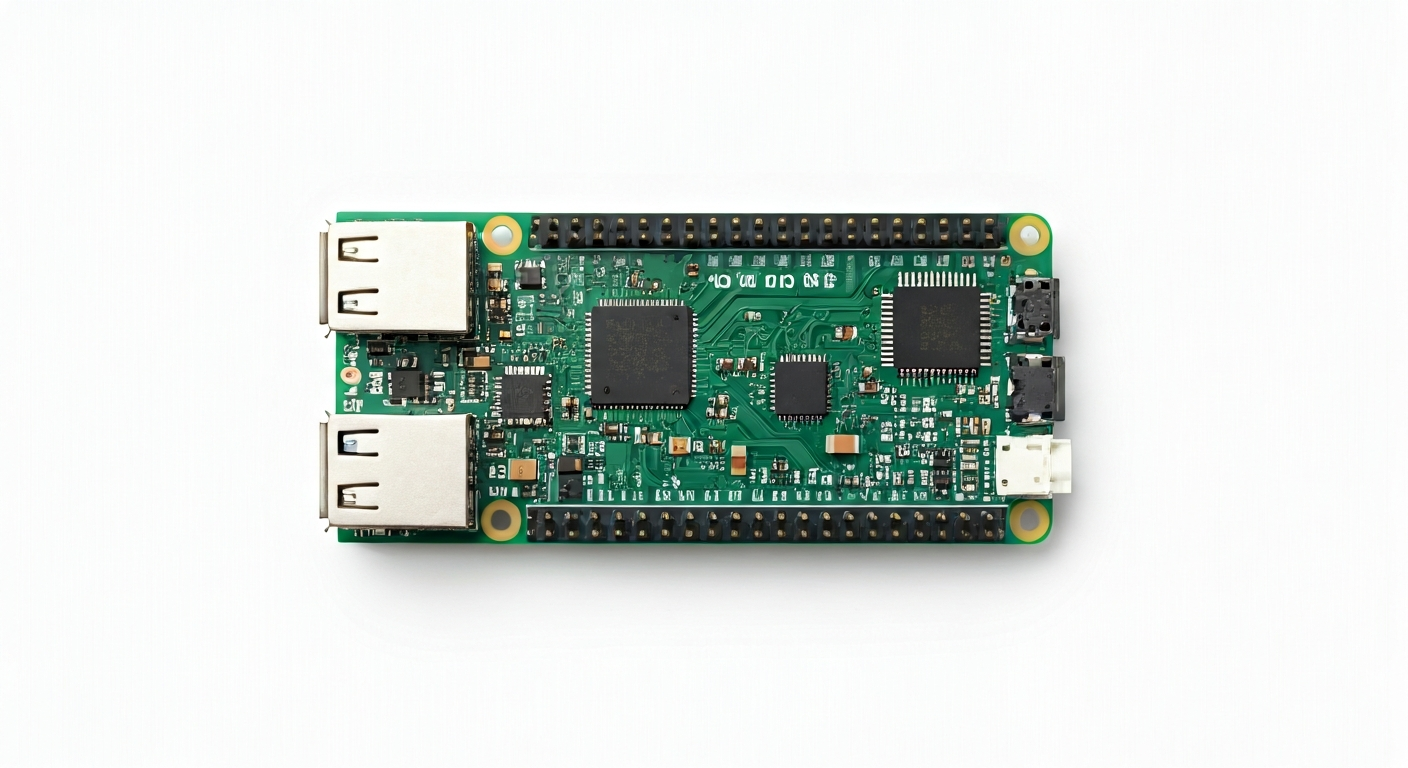
The Raspberry Pi Pico is a departure from the single-board computers (SBCs) that made Raspberry Pi famous. Instead, it's a microcontroller board designed for embedded applications, akin to an Arduino or ESP32. It features the custom-designed RP2040 System-on-Chip (SoC), developed by Raspberry Pi in the UK. This chip is the heart of the Pico, providing its processing power and extensive peripheral set, making it a compelling choice for makers, students, and engineers looking for a capable yet affordable microcontroller.
At its core, the RP2040 is a dual-core ARM Cortex-M0+ processor clocked at up to 133 MHz. This dual-core architecture allows for parallel processing, a significant advantage for complex tasks or real-time control. The chip also boasts a generous amount of on-chip SRAM and supports external QSPI flash memory for program storage, enabling larger and more sophisticated applications. Its design prioritizes flexibility and ease of use, with a rich set of peripherals accessible through a straightforward pinout.
Released in early 2021, the Raspberry Pi Pico was Raspberry Pi's first foray into the microcontroller market. It was designed to be a low-cost, high-performance alternative to existing microcontrollers, leveraging Raspberry Pi's expertise in silicon design and its strong community support. The board is available in two main variants: the standard Pico and the Pico W, which adds Wi-Fi and Bluetooth connectivity. This makes it suitable for a wide range of projects, from simple blinking LEDs to more complex IoT devices and robotics.
The Pico is an excellent choice for hobbyists and students learning about embedded systems due to its accessible price point, extensive documentation, and support for multiple programming environments like MicroPython, CircuitPython, and the Arduino IDE. For more experienced engineers, the RP2040's performance, flexibility, and unique PIO (Programmable I/O) state machines offer advanced capabilities for custom hardware interfaces and high-speed control applications.
Watch
Related video, embedded from YouTube.
Specifications
| Microcontroller / SoC | Raspberry Pi RP2040 |
| Architecture | Dual-core ARM Cortex-M0+ |
| Clock speed | Up to 133 MHz (default 125 MHz) |
| Flash / Storage | 2MB On-board QSPI Flash (external) |
| RAM / SRAM | 264KB On-chip SRAM |
| Operating voltage | 1.8V - 3.3V |
| Digital I/O pins | 26 (multifunction) |
| Analog / ADC | 3x 12-bit ADC inputs (on GPIO26, 27, 28) |
| PWM | All GPIO pins support hardware PWM |
| Connectivity | — (Pico W variant adds Wi-Fi 802.11n and Bluetooth 5.2) |
| USB | 1x USB 1.1 (Host/Device) - micro USB connector |
| Power input | 1.7V - 5.5V (via VSYS pin), 5V (via micro USB) |
| Dimensions | 51mm x 21mm |
Pinout & pin functions
| Pin | Function |
|---|---|
| 3V3 | 3.3V Power Output |
| GND | Ground |
| G0 | GPIO 0 / ADC0 / SPI0 SCK / UART0 TX / PWM |
| G1 | GPIO 1 / ADC1 / SPI0 MOSI / UART0 RX / PWM |
| G2 | GPIO 2 / SPI0 MISO / PWM |
| G3 | GPIO 3 / PWM |
| G4 | GPIO 4 / PWM |
| G5 | GPIO 5 / PWM |
| G6 | GPIO 6 / PWM |
| G7 | GPIO 7 / PWM |
| G8 | GPIO 8 / PWM |
| G9 | GPIO 9 / PWM |
| G10 | GPIO 10 / PWM |
| G11 | GPIO 11 / PWM |
| G12 | GPIO 12 / PWM |
| G13 | GPIO 13 / PWM |
| G14 | GPIO 14 / PWM |
| G15 | GPIO 15 / PWM |
| G16 | GPIO 16 / PWM |
| G17 | GPIO 17 / PWM |
| G18 | GPIO 18 / PWM |
| G19 | GPIO 19 / PWM |
| G20 | GPIO 20 / PWM |
| G21 | GPIO 21 / PWM |
| G22 | GPIO 22 / PWM |
| G23 | GPIO 23 / PWM |
| G24 | GPIO 24 / PWM |
| G25 | GPIO 25 / PWM |
| G26 | GPIO 26 / ADC0 / PWM |
| G27 | GPIO 27 / ADC1 / PWM |
| G28 | GPIO 28 / ADC2 / PWM |
| G29 | GPIO 29 (ADC3 - not connected on Pico) |
| RUN | Reset Pin (active low) |
| VSYS | System Voltage Input (1.7V - 5.5V) |
| 3V3_EN | 3.3V Regulator Enable (active high) |
| VBUS | USB 5V Power Input |
Wiring & circuit basics
The Raspberry Pi Pico operates at a logic level of 3.3V. This means that any sensors or components you connect to its GPIO pins should also be 3.3V compatible. Connecting 5V components directly to GPIO pins can damage the RP2040 chip. If you need to interface with 5V logic devices, use a level shifter. Powering the Pico can be done via its micro USB port (which supplies 5V) or through the VSYS pin, which accepts a voltage range of 1.7V to 5.5V. The Pico has an onboard 3.3V regulator that can supply up to 500mA, suitable for powering small external components.
A common beginner project is to control an LED. To do this, connect the longer leg (anode) of an LED to a GPIO pin (e.g., GPIO15). Connect the shorter leg (cathode) of the LED to one end of a current-limiting resistor (typically 220-330 ohms for a standard LED). Connect the other end of the resistor to a GND pin on the Pico. When the GPIO pin is set to HIGH (3.3V), current flows through the LED and resistor, turning it on. Setting the pin to LOW (0V) turns it off.
For more advanced projects, you might connect an I2C sensor, such as a BME280 environmental sensor. This typically requires four connections: VCC to 3V3, GND to GND, SDA to a designated I2C SDA pin (e.g., GPIO14), and SCL to a designated I2C SCL pin (e.g., GPIO15). The Pico supports multiple I2C, SPI, and UART interfaces, which can be mapped to various GPIO pins, offering great flexibility in connecting peripherals.
Programming & getting started
The Raspberry Pi Pico is highly versatile in its programming options. For beginners, MicroPython and CircuitPython offer an accessible Python-based environment. You can flash a UF2 bootloader onto the Pico, and then simply drag and drop your Python script onto the Pico's drive that appears when connected via USB. For C/C++ development, the official Raspberry Pi Pico SDK, often used with CMake, provides a powerful and efficient way to program the RP2040. The Arduino IDE also has excellent support for the Pico, allowing users familiar with Arduino to leverage their existing knowledge and libraries. PlatformIO is another popular choice for managing projects and dependencies.
To get started with MicroPython, download the appropriate UF2 file for the Pico from the official Raspberry Pi website. Hold down the BOOTSEL button on the Pico while connecting it to your computer via USB. Release the button once connected, and the Pico will appear as a mass storage device. Drag and drop the UF2 file onto this device to flash the MicroPython firmware. You can then use an IDE like Thonny to write and run Python code directly on the Pico.